
| 일 | 월 | 화 | 수 | 목 | 금 | 토 |
|---|---|---|---|---|---|---|
| 1 | 2 | 3 | 4 | 5 | 6 | |
| 7 | 8 | 9 | 10 | 11 | 12 | 13 |
| 14 | 15 | 16 | 17 | 18 | 19 | 20 |
| 21 | 22 | 23 | 24 | 25 | 26 | 27 |
| 28 | 29 | 30 | 31 |
- TestFlight
- heic
- Tuist
- 캐러셀
- xcode 엔터 표시
- NSTextStorageDelegate
- JPEG
- swift 모듈화
- 코드스쿼드
- webp
- nidthirdpartylogin
- xcode 공백 표시
- 클린 아키텍처
- 함께자라기
- .pbxproj
- 타뷸레이션
- contentalignmentpoint
- github 시작하기
- 무한스크롤
- JPG
- NSTextStorage
- png
- Firestore
- swiftdata
- Cocoa Pod
- SwiftUI
- fetchdescriptor
- spm 에러
- 테스트 타겟
- 팀 개발을 위한 git
- Today
- Total
Sure, Why not?
SwiftUI) Push Notification 본문

푸시 알림을 사용하면 앱이 실행 중이 아닐 때에도 앱을 사용하는 기기에 소량의 데이터를 푸시할 수 있음을 설명한다.

푸시 알림 보내는 흐름은
서버가 APNs에 요청을 보내면, APNs는 특정 장치에 알림을 보낸다.
APNs ( Apple Push Notification Service )
Apple이 제공하는 푸시 알림 전용 서비스이다.
인증된 서버만 접근이 가능하고, 디바이스 식별은 device token으로 수행한다.
APNs는 알림을 전달하기 위해 중간에 반드시 통과해야 메세지가 해당기기에 전달이 된다.
Push 사전 준비
1. AuthKey 생성
아래 링크로 이동한다.
로그인 - Apple
idmsa.apple.com
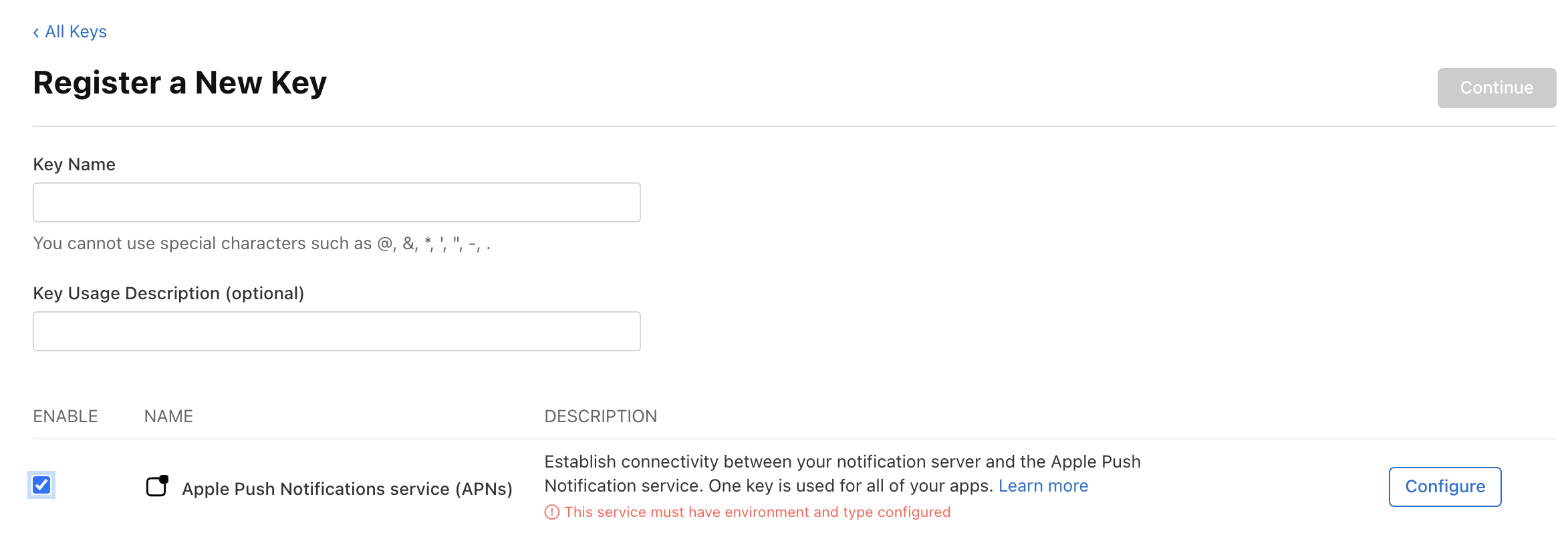

입력 필드를 채워넣고, 등록하면 .p8 파일을 다운로드 한다.
이때 .p8파일은 한 번만 다운로드 가능하니 로컬에 안전하게 백업해줘야 한다.
2. Xcode Target 설정
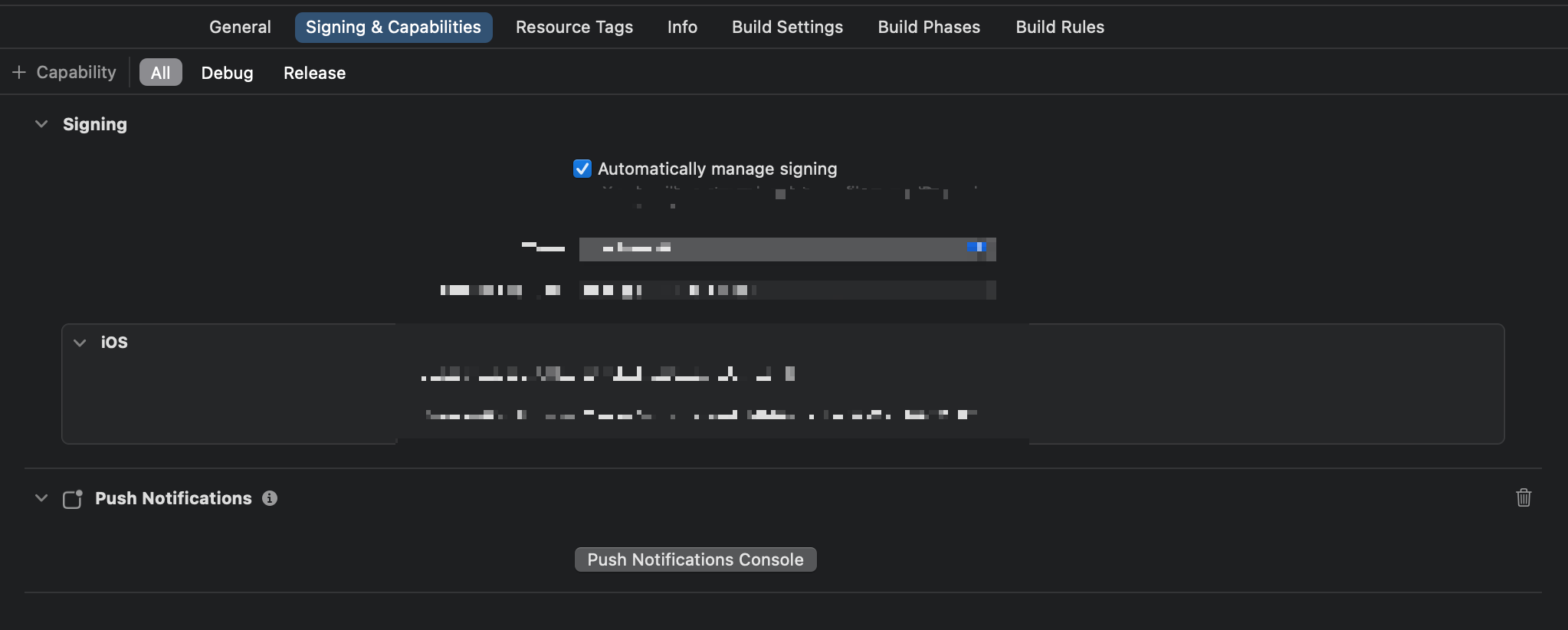
푸시 알림을 수신하려면 앱 타겟에 Push Notifications Capability를 추가한다.
Push 코드 예시
SwiftUI에서 생명주기를 @main, App 프로토콜 기반으로 관리하기 때문에
기존 UIKit기반의 AppDelegate나 SceneDelegate 사용할 일이 줄어들었지만,
Push 구현하기 위해서는 여전히 UIKit기반의 Delegate기반 처리가 필요하다.
그래서 SwiftUI에서 Delegate 등록해주는 작업이 필요함.
AppDelegate
import SwiftUI
import UserNotifications

class AppDelegate: NSObject, UIApplicationDelegate {
    func application(_ application: UIApplication, didFinishLaunchingWithOptions launchOptions: [UIApplication.LaunchOptionsKey : Any]? = nil) -> Bool {
        application.registerForRemoteNotifications()
        UNUserNotificationCenter.current().delegate = self

        return true
    }

    func application(_ application: UIApplication, didRegisterForRemoteNotificationsWithDeviceToken deviceToken: Data) {
        let token = deviceToken.map { String(format: "%02.2hhx", $0) }.joined()
        // 토큰 서버로 전달해야함
        print("device Token: ", token)
    }

}

extension AppDelegate: UNUserNotificationCenterDelegate {
	// 해당 함수는 알림과 상호작용 가능한 역할
    func userNotificationCenter(_ center: UNUserNotificationCenter, didReceive response: UNNotificationResponse) async {

        print("알림 제목: ", response.notification.request.content.title)
    }

    func userNotificationCenter(_ center: UNUserNotificationCenter, willPresent notification: UNNotification) async -> UNNotificationPresentationOptions {

        return [.banner, .list, .badge, .sound]
    }
}
앱이 처음 실행될 때
application.registerForRemoteNotifications() 는 단순히 기기를 APN에 등록하는 일만하고,
자체적인 푸시 설정은 따로 해줘야 한다.
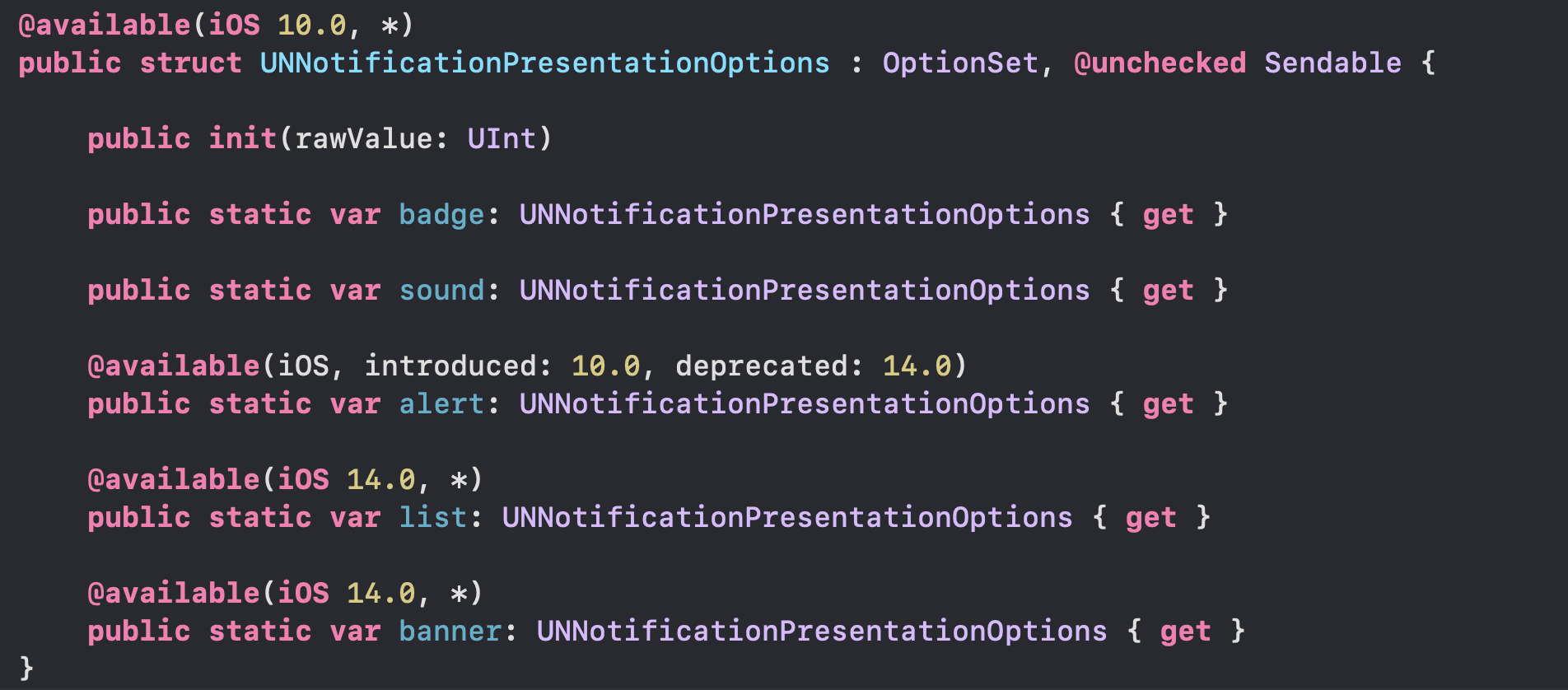
badge는 앱 아이콘에 숫자 뱃지
list는 알림 센터 표시
banner는 화면 위 배너로 표시하는 것을 의미한다.
AppDelegate 연결
import SwiftUI

@main
struct TestPushApp: App {
    @UIApplicationDelegateAdaptor(AppDelegate.self) var appDelegate

    var body: some Scene {
        WindowGroup {
            NavigationStack {
                OnboardingView()
            }
        }
    }
}
권한 요청
enum PushPermissionManager {
    static func requestAuthorization() {
        UNUserNotificationCenter.current().requestAuthorization(options: [.alert, .sound, .badge]) { granted, error in
            if granted {
                print("알림 권한 허용됨")
                DispatchQueue.main.async {
                    UIApplication.shared.registerForRemoteNotifications()
                }
            } else {
                print("알림 권한 거부됨: \(error?.localizedDescription ?? "")")
            }
        }
    }
}
난 특정 뷰에 들어갔을 때 알림 권한 요청이 가길 원했기 때문에
권한 담당하는 객체를 만들어서 호출해줬다.
테스트 결과
여러 방법이 있는데
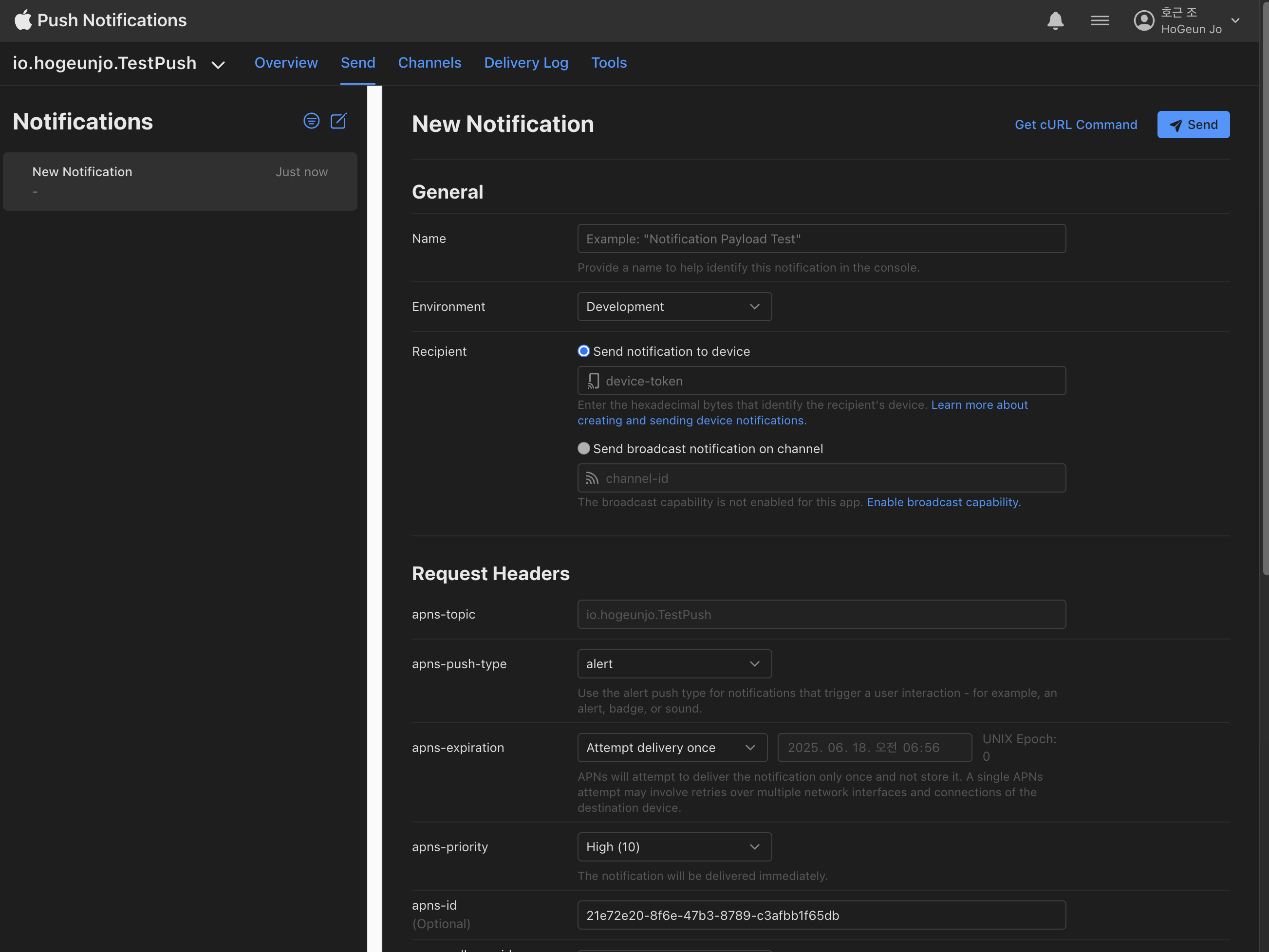
대표적으로 Push Notifications Console 를 사용할 수 있지만, 매번 로그인해야 하는 번거로움 때문에
GitHub - Lyle-Du/Swifty-Pusher: A GUI testing tool for the Apple Push Notification service (APNs)
A GUI testing tool for the Apple Push Notification service (APNs) - Lyle-Du/Swifty-Pusher
github.com
SwiftyPusher라는 맥용 도구를 사용해 테스트를 진행했다.
앱에 deviceToken을 출력해 복사한 뒤,
.p8키 파일과 함께 설정하면 손쉽게 푸시를 보낼 수 있다.
결과
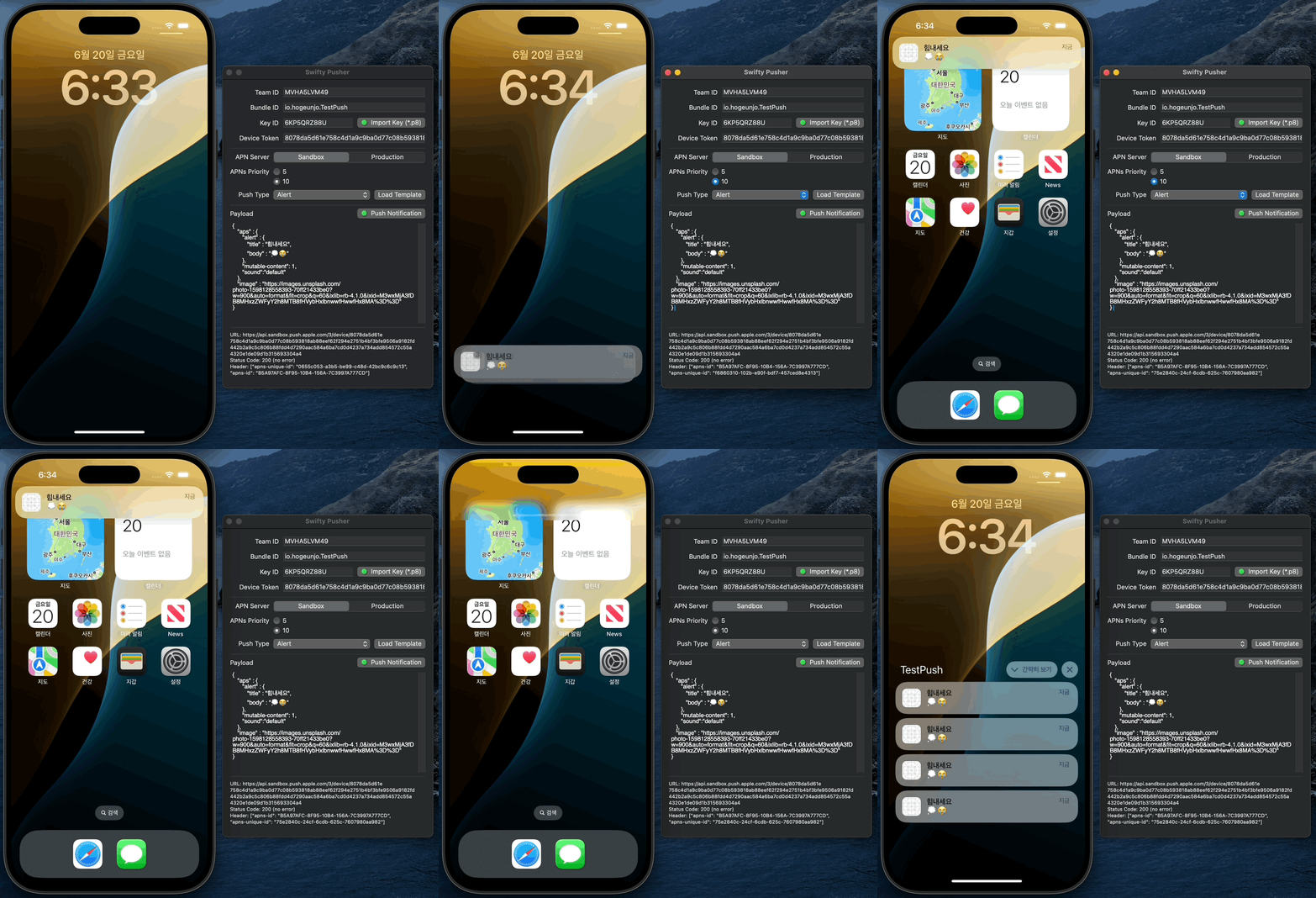
푸시에 이미지 표시
푸시 알림에 이미지와 같은 컨텐츠를 넣은 것을 리치 알림 이라고도 불린다.
default 알림을 기준으로 작업을 진행했다.
iOS에서 푸시 알림에 이미지를 포함하려면,
Notification Service Extension을 통해 이미지 다운로드 및 표시 처리를 따로 해줘야 한다.
정리하면
Notification Service Extension은 푸시 수신 직전에 알림 내용을 가공하거나 미디어 첨부 등 커스텀 작업함
Notification Service Extension 추가하기
- Xcode > File > New > Target
- Notification Service Extension 선택
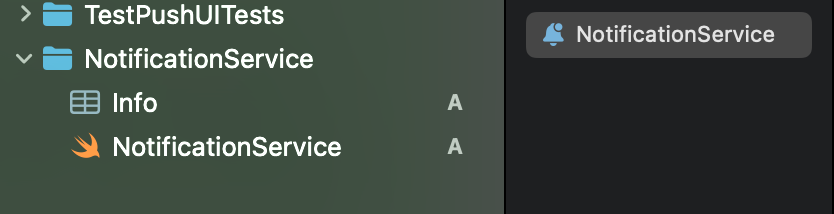
APNs 에 보내는 payload를 적절하게 구성하여 요청해준다.
{
   "aps" : {
      "alert" : {
         "title" : "힘내세요",
         "body" : "💭😭"
      },
      "mutable-content": 1,
      "sound":"default"
   },
   "image" : "https://images.unsplash.com/photo-1598128558393-70ff21433be0?w=900&auto=format&fit=crop&q=60&ixlib=rb-4.1.0&ixid=M3wxMjA3fDB8MHxzZWFyY2h8MTB8fHVybHxlbnwwfHwwfHx8MA%3D%3D"
}
mutable-content는 알림의 내용을 변경 가능하게 만들어 주는 역할을 한다.
1로 설정되면, Notification Service Extension으로 전달해서 커스텀할 수 있게 됨.
import UserNotifications
import UIKit

class NotificationService: UNNotificationServiceExtension {
    var contentHandler: ((UNNotificationContent) -> Void)?
    var bestAttemptContent: UNMutableNotificationContent?

    override func didReceive(
        _ request: UNNotificationRequest,
        withContentHandler contentHandler: @escaping (UNNotificationContent) -> Void
    ) {
        self.contentHandler = contentHandler
        bestAttemptContent = (request.content.mutableCopy() as? UNMutableNotificationContent)

        guard let bestAttemptContent = bestAttemptContent else {
            contentHandler(request.content)
            return
        }

        print("User Info received: ", request.content.userInfo)

        guard let imageURLString = request.content.userInfo["image"] as? String else {
            print("Invalid image URL")
            contentHandler(bestAttemptContent)
            return
        }

        do {
            try saveFile(id: "myImage.png", imageURLString: imageURLString) { fileURL in
                do {
                    print(fileURL.absoluteURL)
                    let attachment = try UNNotificationAttachment(identifier: "", url: fileURL, options: nil)
                    bestAttemptContent.attachments = [attachment]
                    contentHandler(bestAttemptContent)
                } catch {
                    print("Attachment creation error:", error)
                    contentHandler(bestAttemptContent)
                }
            }
        } catch {
            print("Save file error:", error)
            contentHandler(bestAttemptContent)
        }
    }

    override func serviceExtensionTimeWillExpire() {
        if let contentHandler, let bestAttemptContent {
            contentHandler(bestAttemptContent)
        }
    }

    private func saveFile(id: String, imageURLString: String, completion: (_ fileURL: URL) -> Void) throws {
        let fileManager = FileManager.default
        let documentDirectory = try fileManager.url(for: .cachesDirectory, in: .userDomainMask, appropriateFor: nil, create: false)
        let fileURL = documentDirectory.appendingPathComponent(id)

        guard
            let imageURL = URL(string: imageURLString),
            let data = try? Data(contentsOf: imageURL)
        else { throw URLError(.cannotDecodeContentData) }
        try data.write(to: fileURL)
        completion(fileURL)
    }
}
이미지를 추출해서 로컬에 저장하고, 알림 콘텐츠에 이미지 첨부 후 사용자에게 표시하도록 하였다.
테스트할 때는 반드시
실제기기에서 진행되어야 한다.
이미지 푸시 결과
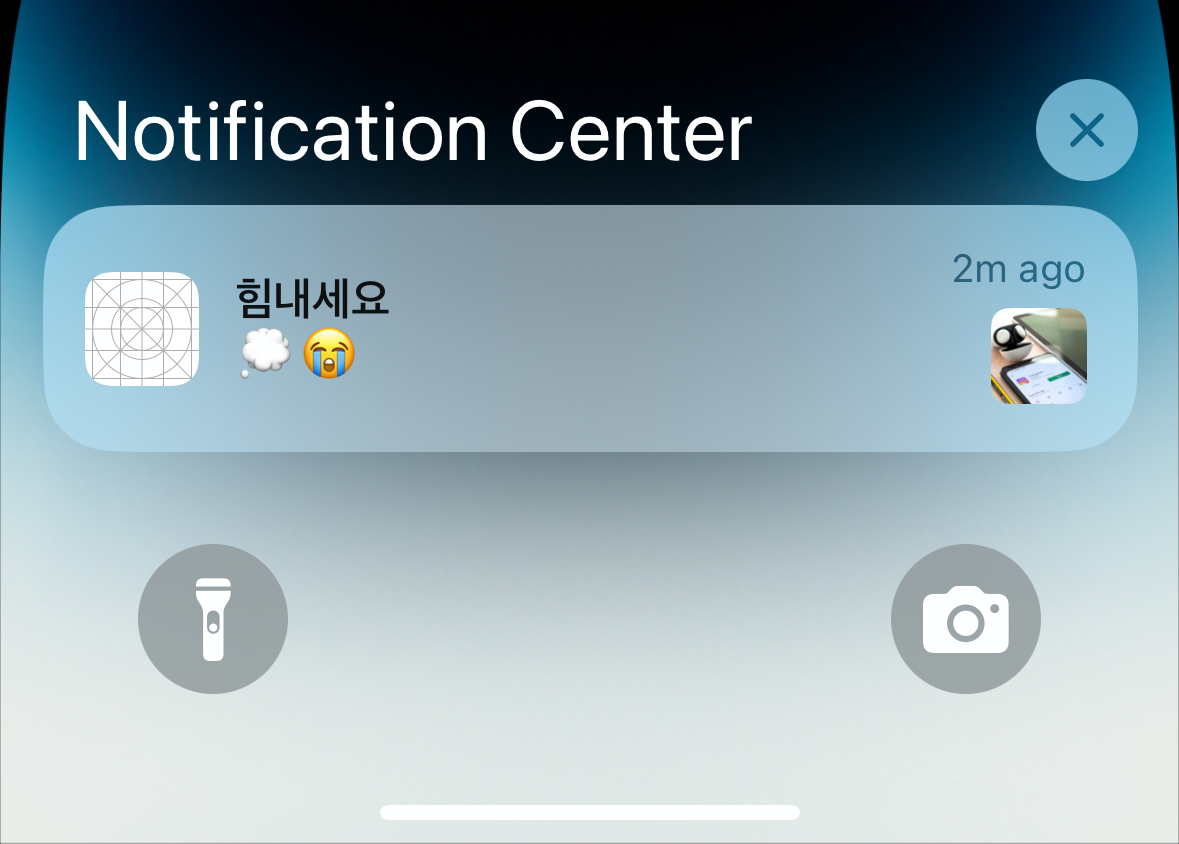
정리
APNs만으로도 푸시 알림을 경험해보았다.
그런데 실제 서비스에서는 다음과 같은 한계 때문에
- 안드로이드도 지원하는 앱
- 서버측 푸시 발송 설계
- 전송 스케줄링 및 부가 기능
- 세분화 마케팅
구글이 만든 FCM(Firebase Cloud Messaging) 을 사용하는 경우가 많다고 한다.
Reference
Setting up a remote notification server | Apple Developer Documentation
Generate notifications and push them to user devices.
developer.apple.com
Your Complete Guide to Push Notifications in SwiftUI
Push notifications are a feature that many apps use, but there hasn’t been much content around how they work or how to implement them. In this tutorial we will make this complex topic easier to…
medium.com
'💻' 카테고리의 다른 글
| Core Bluetooth (3) | 2025.07.21 |
|---|---|
| SwiftUI ) FCM 푸시 알림으로 특정 화면 이동 처리하기 (4) | 2025.07.05 |
| API 동시 호출 시에도 안전하게 토큰 재발급하기 (0) | 2025.05.07 |
| 통합 로깅 시스템 os Logger (1) | 2025.04.30 |
| SwiftUI에서 무한 Carousel View 만들기 (0) | 2025.04.29 |


