
| 일 | 월 | 화 | 수 | 목 | 금 | 토 |
|---|---|---|---|---|---|---|
| 1 | 2 | 3 | 4 | 5 | 6 | |
| 7 | 8 | 9 | 10 | 11 | 12 | 13 |
| 14 | 15 | 16 | 17 | 18 | 19 | 20 |
| 21 | 22 | 23 | 24 | 25 | 26 | 27 |
| 28 | 29 | 30 | 31 |
- xcode 엔터 표시
- fetchdescriptor
- JPEG
- 코드스쿼드
- png
- SwiftUI
- contentalignmentpoint
- JPG
- heic
- .pbxproj
- 팀 개발을 위한 git
- nidthirdpartylogin
- 클린 아키텍처
- spm 에러
- swift 모듈화
- xcode 공백 표시
- Firestore
- 타뷸레이션
- swiftdata
- NSTextStorage
- 테스트 타겟
- Cocoa Pod
- webp
- 무한스크롤
- Tuist
- github 시작하기
- 함께자라기
- 캐러셀
- NSTextStorageDelegate
- TestFlight
- Today
- Total
Sure, Why not?
SwiftUI ) FCM 푸시 알림으로 특정 화면 이동 처리하기 본문

APNs만으로 iOS 푸시 알림을 경험했지만,
실제 서비스에서는
안드로이드 지원, 서버 연동, 마케팅 기능 등등 복잡한 요구가 생긴다.
이런 이유로 많은 팀들이 확장성과 편의성을 갖춘 Firebase Cloud Messaging을 선택하는 것 같다.
1. Xcode 프로젝트 설정
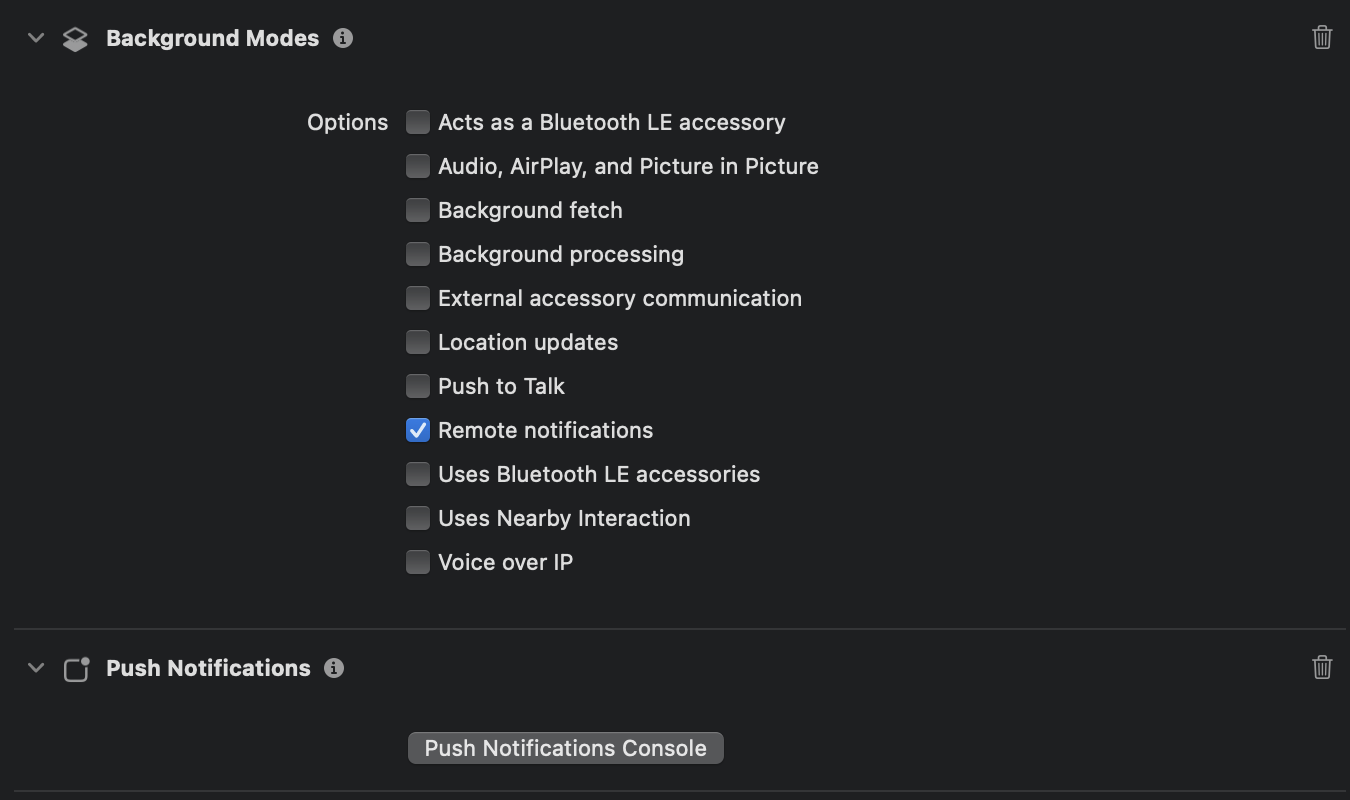
Signing & Capabilities 탭에서 아래 두 개를 추가한다.
2. Firebase 설정
로그인 - Google 계정
이메일 또는 휴대전화
accounts.google.com
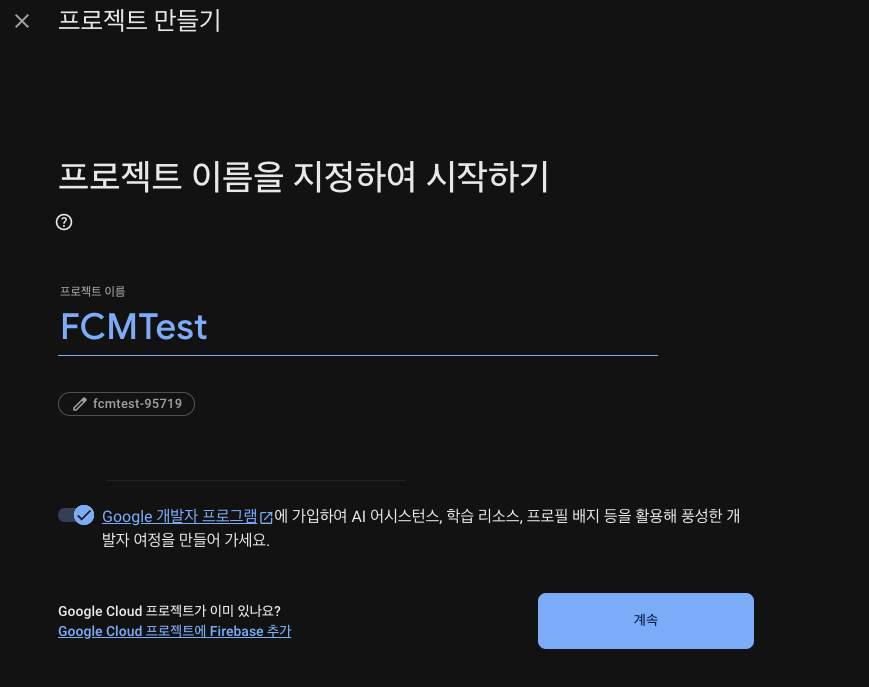
새 프로젝트를 생성한다.
iOS 앱 등록해준다. (Bundle ID 필요함)
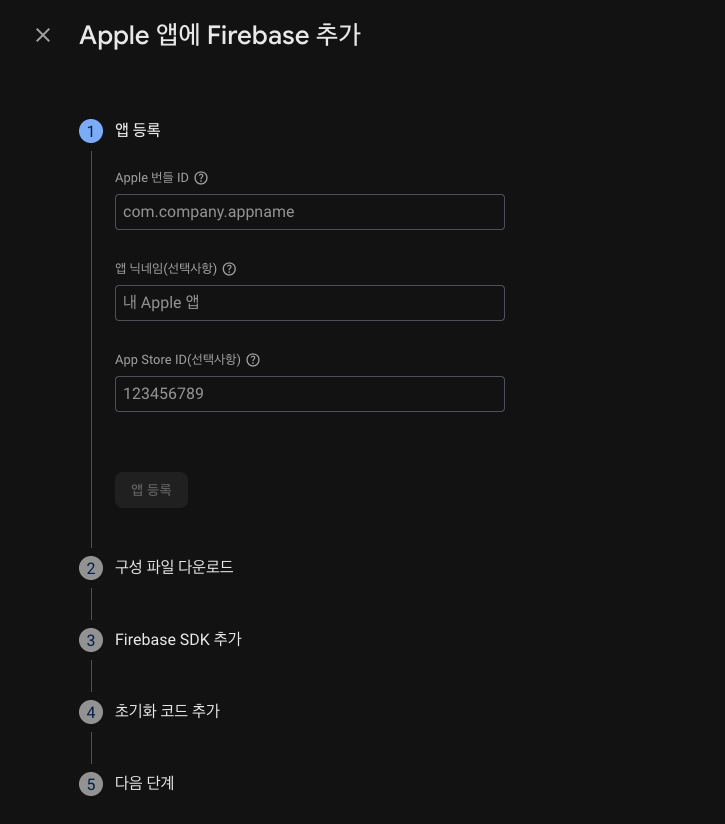
그리고 안내되는 과정을 수행한다. (info.plist 이동, SDK 설치 등등 )
SDK설치 시, FCM이 목적이니 FirebaseMessaging을 선택하였다.
3. APNs 인증 설정
로그인 - Apple
idmsa.apple.com
새로운 Key를 생성해주고, p8 인증 파일을 한 번만 저장이 가능하기 때문에,
주의해서 저장관리한다.
프로젝트 설정 들어간다.
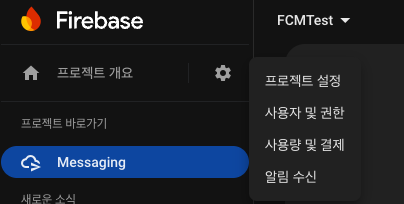
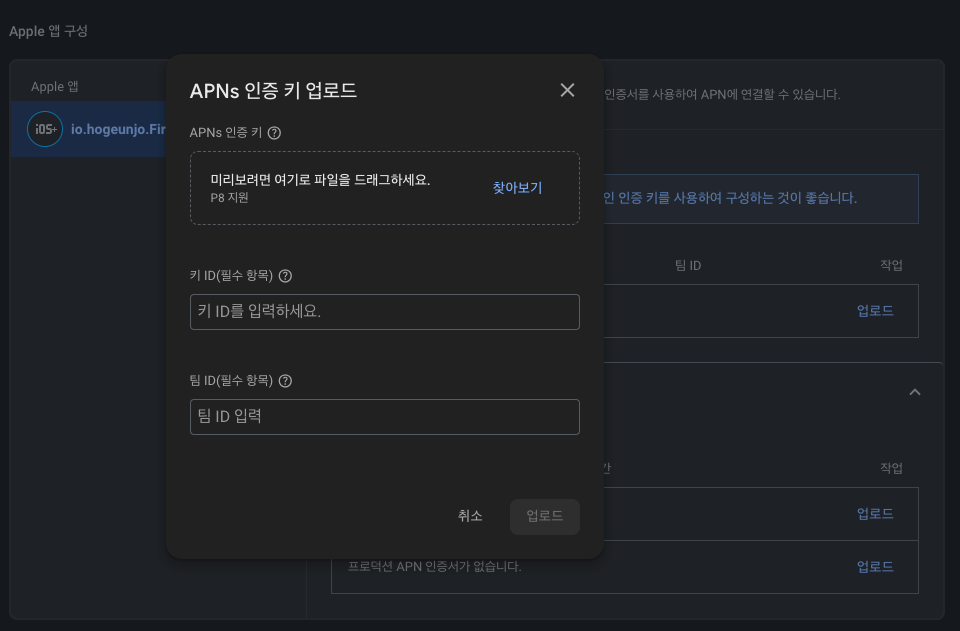
아까 다운로드한 p8파일 업로드해준다.
키 ID는 그대로 넣어주면 되고,
팀 ID는 아래 주소에서 확인 가능하다.
로그인 - Apple
idmsa.apple.com
그러면 지금까지의 초기 세팅은 완료 되었다.
이제 코드작성 남았다.
단순한 푸시알림은 이전에 했으니,
조건에 따라 특정 뷰로 이동하거나 푸시를 무시하는 시나리오로 시작하고자 한다.
대표적인 시나리오는 다음과 같다.
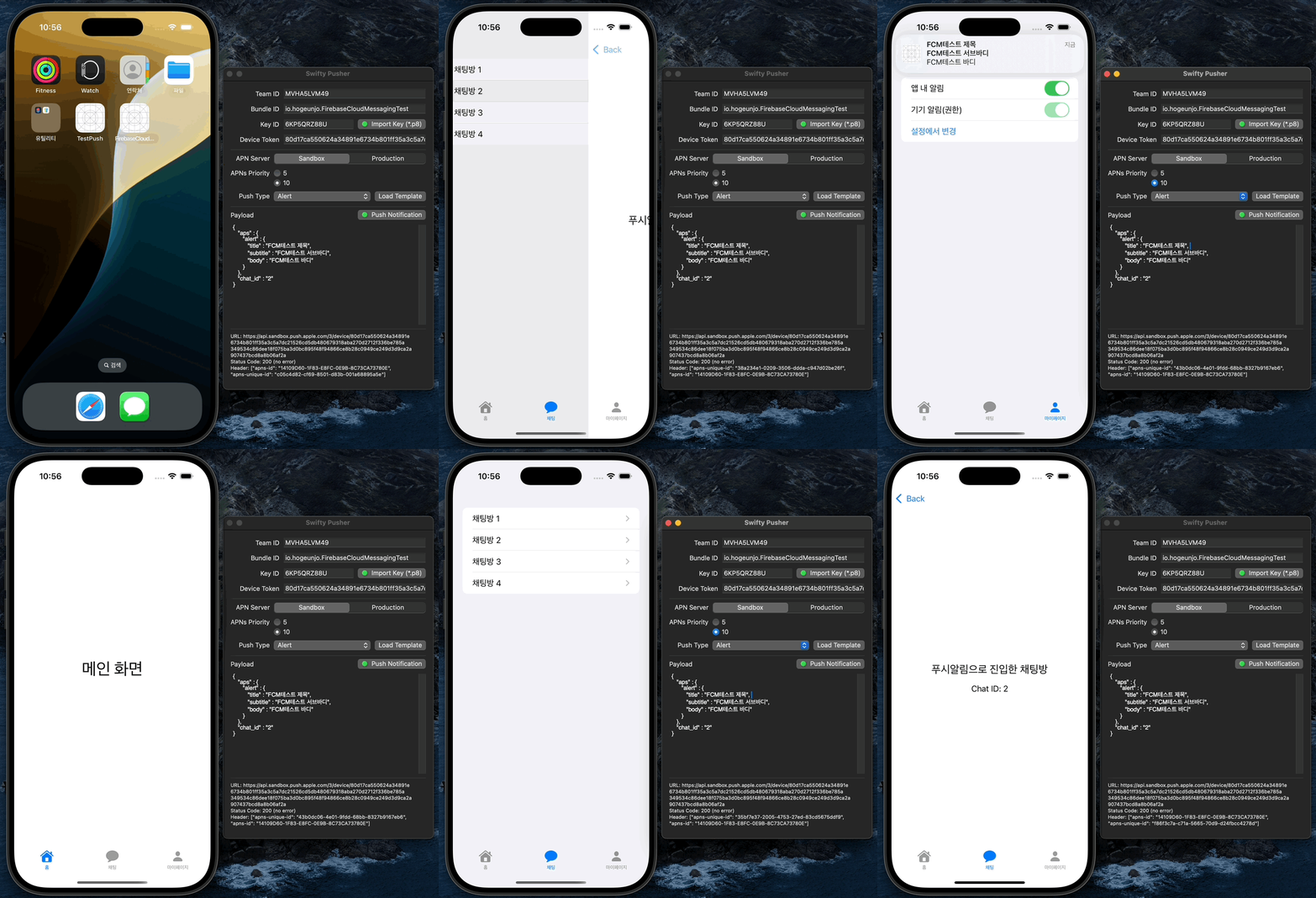
- 채팅 탭이 아닐때 -> 채팅탭, 채팅방 이동
- 채팅 탭에 이미 있을 때 -> 푸시 무시
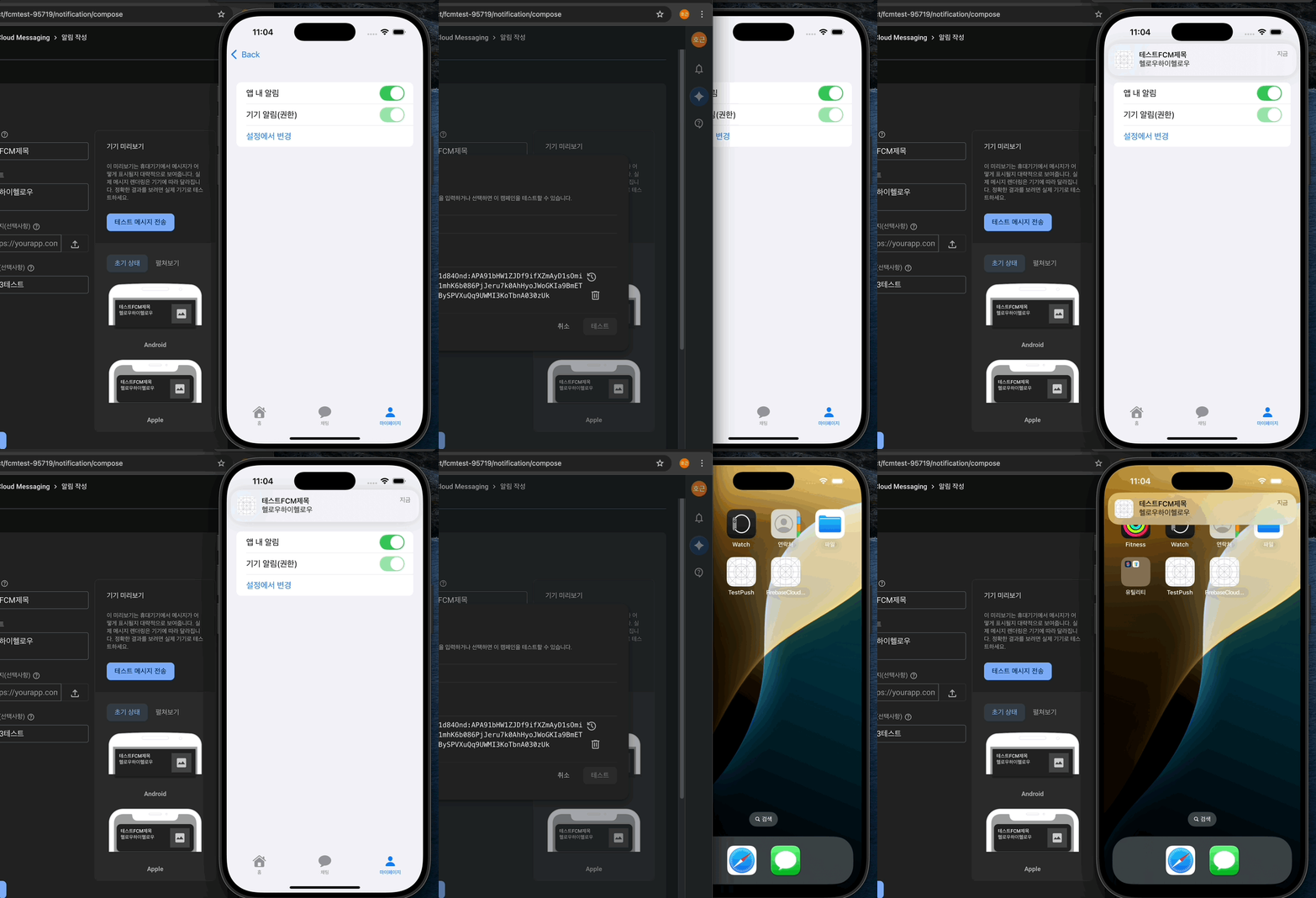
- 앱내, 시스템 알림권한 -> 알림 무시
세부적인 코드를 전부 나타내지 않고, 중요하다고 판단되는 로직만 정리하고자 한다.
AppDelegate
import SwiftUI
import UserNotifications
import Firebase
import FirebaseMessaging

class AppDelegate: NSObject, UIApplicationDelegate {

    weak var tabManager: TabSelectionManager?
    weak var pushSetting: PushSettingManager?

    func application(_ application: UIApplication, didFinishLaunchingWithOptions launchOptions: [UIApplication.LaunchOptionsKey: Any]?) -> Bool {

        FirebaseApp.configure()
        UNUserNotificationCenter.current().delegate = self
        Messaging.messaging().delegate = self

        requestNotificationPermission()

        return true
    }

    func application(_ application: UIApplication, didRegisterForRemoteNotificationsWithDeviceToken deviceToken: Data) {
        let token = deviceToken.map { String(format: "%02.2hhx", $0) }.joined()
        print("device Token: ", token)
        Messaging.messaging().apnsToken = deviceToken
    }

}

extension AppDelegate {

    private func requestNotificationPermission() {
        UNUserNotificationCenter.current().requestAuthorization(options: [.alert, .badge, .sound]) { granted, _ in
            DispatchQueue.main.async {
                if granted {
                    UIApplication.shared.registerForRemoteNotifications()
                }
            }
        }
    }

}

extension AppDelegate: UNUserNotificationCenterDelegate {

    func userNotificationCenter(_ center: UNUserNotificationCenter, willPresent notification: UNNotification) async -> UNNotificationPresentationOptions {

        guard let shouldShowPush = pushSetting?.shouldShowPush,
              shouldShowPush else {
            print("앱/OS 알림꺼짐 -> 알림 무시")
            return []
        }

        if tabManager?.selectedTab == .chat {
            return []
        } else {
            return [.banner, .list, .badge, .sound]
        }
    }

    func userNotificationCenter(_ center: UNUserNotificationCenter, didReceive response: UNNotificationResponse) async {
        let userInfo = response.notification.request.content.userInfo
        print("받은 푸시 데이터: ", userInfo)

        if let chatID = userInfo["chat_id"] as? String {
            await MainActor.run {
                if tabManager?.selectedTab != .chat {
                    tabManager?.pendingChatID = chatID
                    tabManager?.selectedTab = .chat
                } else {
                    print("채팅탭에 있으므로 푸시 네비게이션 무시")
                }
            }
        }
        print("알림 제목: ", response.notification.request.content.title)
    }

}

extension AppDelegate: MessagingDelegate {

    func messaging(_ messaging: Messaging, didReceiveRegistrationToken fcmToken: String?) {

        // FCM토큰 서버에 전달해야함
        print("FCM 토큰: \(fcmToken ?? "없음")")
    }

}
앱이 실행되면 Firebase설정, 델리게이트 설정한다.
디바이스 토큰을 확인하고자 한다면, Firebase가 내부적으로 swizzling하고 있기 때문에
끄면 확인할 수 있다.
Info.plist에 아래와 같이 설정하면 됨.
<key>FirebaseAppDelegateProxyEnabled</key>
<false/>
스위즐링 = 런타임에 기존 메서드의 동작을 가로채서 다른 코드로 바꾸는 기능
앱이 시작하자마자 알림권한을 받고 있는데,
requestNotificationPermission를 특정뷰에서 호출하면, 의도하는 뷰에서 권한알림을 할 수 있다.
willPresent(notification:)
앱이 포그라운드 상태에서 수신할 때 설정하는데,
알림 설정 체크와 현재 탭 상태를 비교하여 푸시를 표시할 지, 무시할 지 결정하도록 하였다.
didReceive(response:)
푸시 알림을 탭했을 때 호출되는 메서드인데,
나는 푸시 데이터에서 chat_id를 추출해서 채팅 탭으로 전환하고 채팅방으로 이동까지 하도록 하였다.
TabSelectionManager
선택된 탭과 채팅 이동 정보를 관리하는 객체로,
푸시 알림 등으로 받은 chatID를 바탕으로 chatPath를 설정해 네비게이션 흐름을 제어한다.
import Foundation

enum Tab: Hashable {
    case home, chat, myPage
}

final class TabSelectionManager: ObservableObject {
    @Published var selectedTab: Tab = .home
    @Published var pendingChatID: String? = nil
    @Published var chatPath: [String] = []

    func handlePendingNavigation() {
        if let chatID = pendingChatID {
            if !chatPath.contains(chatID) {
                chatPath = [chatID]
            }
            pendingChatID = nil

            print("chatPath: ", chatPath)
        }
    }
}
PushSettingManager
앱 내부 푸시 설정과 iOS 시스템 푸시 권한 상태를 관리하는 객체
import Foundation
import UserNotifications

final class PushSettingManager: ObservableObject {
    @Published var isAppPushEnabled: Bool = true
    @Published var isOSPushEnabled: Bool = true

    func checkOSPushStatus() {
        UNUserNotificationCenter.current().getNotificationSettings { settings in
            Task { @MainActor in
                self.isOSPushEnabled = (settings.authorizationStatus == .authorized)
            }
        }
    }

    var shouldShowPush: Bool {
        isAppPushEnabled && isOSPushEnabled
    }
}
RootView
import SwiftUI

struct RootView: View {
    @EnvironmentObject var tabManager: TabSelectionManager
    @EnvironmentObject var pushSetting: PushSettingManager

    var body: some View {
        TabView(selection: $tabManager.selectedTab) {
            // 홈 탭
            NavigationStack {
                VStack {
                    Text("메인 화면")
                        .font(.largeTitle)
                        .padding()
                }
            }
            .tabItem { Label("홈", systemImage: "house.fill") }
            .tag(Tab.home)

            NavigationStack(path: $tabManager.chatPath) {
                ChatListView()
                    .onAppear {
                        tabManager.handlePendingNavigation()
                    }
                    .onChange(of: tabManager.pendingChatID) { _, _ in
                        tabManager.handlePendingNavigation()
                    }
                    .navigationDestination(for: String.self) { chatID in
                        ChatView(chatID: chatID)
                    }
            }
            .tabItem { Label("채팅", systemImage: "message.fill") }
            .tag(Tab.chat)

            // 마이페이지 탭
            NavigationStack {
                VStack {
                    Text("마이페이지")
                        .font(.largeTitle)

                    NavigationLink("알림 설정") {
                        PushSettingView(pushSetting: pushSetting)
                    }
                    .padding()
                }
            }
            .tabItem { Label("마이페이지", systemImage: "person.fill") }
            .tag(Tab.myPage)
        }
    }
}
임의 채팅리스트 뷰에서
onAppear는 채팅 탭에 진입할 때 pendingChatID가 있다면 즉시 이동하게 하고,
onChange는 푸시 클릭 등으로 pendingChatID가 바뀌는 경우에도 대응하도록 하였다.
결과
'💻' 카테고리의 다른 글
| async let vs TaskGroup vs 연속 await (2) | 2025.08.28 |
|---|---|
| Core Bluetooth (3) | 2025.07.21 |
| SwiftUI) Push Notification (0) | 2025.06.20 |
| API 동시 호출 시에도 안전하게 토큰 재발급하기 (0) | 2025.05.07 |
| 통합 로깅 시스템 os Logger (1) | 2025.04.30 |


