
| 일 | 월 | 화 | 수 | 목 | 금 | 토 |
|---|---|---|---|---|---|---|
| 1 | 2 | 3 | 4 | 5 | 6 | |
| 7 | 8 | 9 | 10 | 11 | 12 | 13 |
| 14 | 15 | 16 | 17 | 18 | 19 | 20 |
| 21 | 22 | 23 | 24 | 25 | 26 | 27 |
| 28 | 29 | 30 | 31 |
- NSTextStorage
- spm 에러
- 코드스쿼드
- github 시작하기
- webp
- 클린 아키텍처
- swiftdata
- 무한스크롤
- contentalignmentpoint
- 타뷸레이션
- nidthirdpartylogin
- heic
- 캐러셀
- xcode 엔터 표시
- 테스트 타겟
- NSTextStorageDelegate
- SwiftUI
- Tuist
- swift 모듈화
- JPEG
- xcode 공백 표시
- fetchdescriptor
- Cocoa Pod
- png
- 함께자라기
- TestFlight
- Firestore
- .pbxproj
- 팀 개발을 위한 git
- JPG
- Today
- Total
Sure, Why not?
Core Bluetooth 본문
블루투스를 들었을 때, 단순히 무선 이라는 키워드가 떠오른다.
정확한 정의를 찾아보니, 근거리에서 데이터를 무선으로 주고받는 통신이라고 한다.
현재 기준으로 최근 5월에 발표된 6.1버전이 최신이다.
별 생각 없이 쓰고 있었지만, 이렇게 꾸준히 업데이트되고 있다는 점이 인상깊다.
Delivering on the bi-annual release schedule: Bluetooth® Core 6.1 is here | Bluetooth® Technology Website
Blog Blog The Bluetooth® Core Specification recently moved to a bi-annual release schedule. This shift enables more frequent and consistent delivery of completed features…
www.bluetooth.com
주요 특징은 저전력, 다수연결, 간편 페어링 등등 있으며,
학습하면서 가장 인상깊은 내용으로는
클래스라는 개념이 나온다.
클래스는 블루투스 통신에 이용되는 전파의 강도를 나타낸다. 이때 기기끼리 같은 클래스를 맞출 필요는 없다.
| CLASS | 최대 출력 | 최대 송수신 거리 |
| CLASS 1 | 100mW | 100m |
| CLASS 2 | 2.5mW | 10m |
| CLASS 3 | 1.0mW | 1m |
| CLASS 4 | 0.5mW | 50cm |
표를 보면 알 수 있듯이, 전력대비 효율이 좋은 클래스 2를 가장 많이 사용한다.
그래서 흔히 블루투스 근거리를 나타낼때 10m이내라는 표현을 사용하는 것이 이해가 되었다.
이때 드물게 클래스1 사용하는 제품이 있는데, 애플이 인수한 뒤에 출시된 Beats시리즈가 대표적이라고 한다.
AirPods 2세대, Powerbeats Pro 등은 블루투스 5와 클래스 1을 지원하며,
이는 이 제품들에 들어가는 ‘W1’ 칩셋 등 애플의 무선 통신 칩셋이 클래스 1을 탑재하기 때문이다.
그래서 iPhone 7 이후 기종들은 블루투스 클래스 1을 지원하게 됐고,
반면에 iPhone 6s 및 그 이전 기종은 클래스 2만 지원한다.
그렇다고, 클래스1인 제품과 클래스 2제품을 연결했을 때, 80m 거리까지 정상작동하는 것을 보면
결국 블루투스의 거리나 성능은 실제 환경, 기기 스펙에 따라 유동적으로 달라진다는 것을 알 수 있다.
(나의 닥터드레 헤드셋이 갑자기 다시 보이기 시작했다..)
Core Bluetooth
Core Bluetooth | Apple Developer Documentation
Communicate with Bluetooth low energy and BR/EDR (“Classic”) Devices.
developer.apple.com
iOS에서 BLE 기능을 Core Bluetooth 프레임워크를 통해 쉽게 구현할 수 있다.
Info.plist 설정

iOS 13부터는 Info.plist에 NSBluetoothAlwaysUsageDescription을 반드시 추가해야 Core Bluetooth 사용 시 앱이 크래시 안 난다.
Core Bluetooth의 기본 구조
Core Bluetooth는 Central 과 Peripheral 두 가지 역할로 나뉜다.
Central -> 데이터 받고 싶은 기기
Peripheral -> 주변기기, 데이터 제공해주는 기기
앱에서 BLE를 쓰려면,
보통 CBCentralManager를 초기화해서 Peripheral를 스캔하고,
기기를 찾으면, 그 기기가 제공하는 서비스와 특성에 접근하는 흐름을 가진다.
Core Bluetooth 연동
각 매니저에서 상태 변화나 이벤트를 델리게이트로 받아서 처리하면 구현 끝이다.
1. CBPeripheralManager 초기화
peripheralManager = CBPeripheralManager(delegate: self, queue: nil)
2. 서비스, 특성 생성 및 연결
주변기기가 어떤 서비스와 데이터를 제공할 건지 선언해야한다.
let char = CBMutableCharacteristic(
    type: PeripheralUUID.characteristic,
    properties: [.notify],
    value: nil,
    permissions: [.readable]
)
self.characteristic = char
notify속성 덕분에, 수신자에게 실시간으로 값 변경 알림이 가능하다.
let service = CBMutableService(type: PeripheralUUID.service, primary: true)
service.characteristics = [char]
peripheralManager.add(service)
메인 서비스임을 명시하고, 등록하는 과정을 거친다.
여기서 해당 CBUUID를 사용한다.
블루투스 통신용으로 특화된 식별자이다.
그래서 서비스는 카테고리처럼 하나의 묶음이라면,
특성은 실제 데이터를 주고받는 항목으로 이해한다.
peripheralManager.startAdvertising([
    CBAdvertisementDataServiceUUIDsKey: [PeripheralUUID.service],
    CBAdvertisementDataLocalNameKey: "PeripheralTest"
])
이제 주변기기 신호(광고)를 뿌리기 시작한다.
Central에서는 스캔하면 해당 광이름과 서비스 UUID를 발견할 수 있게 된다.
CBPeripheralManagerDelegate
내가 사용한 메서드를 정리하고자 한다.
func peripheralManagerDidUpdateState(_ peripheral: CBPeripheralManager) {
        switch peripheral.state {
        case .poweredOn:
            logger.info("✅ Bluetooth ON")
        case .poweredOff:
            logger.warning("❌ Bluetooth OFF")
        case .unsupported:
            logger.error("⚠️ BLE unsupported on this device")
        default:
            logger.debug("ℹ️ Peripheral state: \(peripheral.state.rawValue)")
        }
    }
블루투스 상태가 바뀔 때마다 호출된다
하드웨어의 상태를 감지해줌
func peripheralManager(_ peripheral: CBPeripheralManager, central: CBCentral, didSubscribeTo characteristic: CBCharacteristic) { }Central이 주변기기의 특성에 구독이 되었을 때 호출한다.
바로 데이터를 보내기 시작하면 됨
func peripheralManager(_ peripheral: CBPeripheralManager, central: CBCentral, didUnsubscribeFrom characteristic: CBCharacteristic) { }Central이 주변기기의 특성에 구독이 해제되었을 때 호출
연결끊김
1. CBCentralManager 초기화
centralManager = CBCentralManager(delegate: self, queue: nil)
2. 스캔 시작 및 Peripheral 탐색
centralManager.scanForPeripherals(
            withServices: [PeripheralUUID.service]
)
특정 서비스를 가진 기기만 스캔하도록 하였다.
withServices 파라미터에 nil을 넣으면
주변 광고하는 BEL 모든 기기를 스캔하게 된다.
CBCentralManagerDelegate
func centralManagerDidUpdateState(_ central: CBCentralManager) {
        switch central.state {
        case .poweredOn:
            logger.info("✅ BLE 켜짐")
            startScan()

        case .poweredOff:
            logger.warning("❌ BLE 꺼짐")
        case .unsupported:
            logger.error("⚠️ 디바이스 BLE 미지원")
        default:
            logger.debug("ℹ️ BLE 상태: \(central.state.rawValue)")
        }
    }
블루투스 상태가 바뀔 때마다 호출된다
하드웨어의 상태를 감지해줌
func centralManager(_ central: CBCentralManager, didDiscover peripheral: CBPeripheral, advertisementData: [String: Any], rssi RSSI: NSNumber) {
        logger.info("🔍 발견된 Peripheral: \(peripheral.name ?? "Unknown"), RSSI: \(RSSI.intValue)")
        logger.info("📡 이름: \(peripheral.name ?? "이름 없음")")
        logger.info("🆔 UUID: \(peripheral.identifier)")
        logger.info("🔗 상태: \(peripheral.state.rawValue)")


        Task { @MainActor in
            self.delegate?.didUpdateRSSI(RSSI.intValue)
        }

        stopScan()
        connectedPeripheral = peripheral
        peripheral.delegate = self
        centralManager.connect(peripheral, options: nil)
    }
주변기기 감지하면 호출된다.
원하는 기기를 찾으면, Peripheral 연결시도를 하고 이벤트를 받도록 하였다.
func centralManager(_ central: CBCentralManager, didConnect peripheral: CBPeripheral) {
        logger.info("✅ Peripheral 연결됨")
        stopScan()
        peripheral.discoverServices([PeripheralUUID.service])
        startRSSIUpdates()
    }
실제 연결되고 나서 호출된다.
연결이 되었으면 더 이상 스캔할 필요가 없기 때문에 스캔중지를 한다.
stopScan()은 내부에 centralManager.stopScan() 를 바탕으로 스캔중지를 하게 된다.
CBPeripheralDelegate
func peripheral(_ peripheral: CBPeripheral, didDiscoverServices error: Error?) {
        if let error {
            logger.error("🚨 서비스 탐색 실패: \(error.localizedDescription)")
            return
        }

        guard let service = peripheral.services?.first else {
            logger.warning("⚠️ 서비스 없음")
            return
        }

        logger.info("📦 서비스 발견됨 - characteristics 탐색 시작")
        peripheral.discoverCharacteristics([PeripheralUUID.characteristic], for: service)
    }
서비스를 찾으면, 그 다음 특성을 찾는다.
func peripheral(_ peripheral: CBPeripheral, didDiscoverCharacteristicsFor service: CBService, error: Error?) {
        if let error {
            logger.error("🚨 characteristic 탐색 실패: \(error.localizedDescription)")
            return
        }

        guard let characteristic = service.characteristics?.first else {
            logger.warning("⚠️ characteristic 없음")
            return
        }

        self.targetCharacteristic = characteristic
        peripheral.setNotifyValue(true, for: characteristic)
        logger.info("🟢 Notify 등록됨")
    }
특성까지 찾으면, 값이 바뀔 때마다 알림이 오도록 설정한다.
func peripheral(_ peripheral: CBPeripheral, didUpdateValueFor characteristic: CBCharacteristic, error: Error?) {
        if let error {
            logger.error("❌ 데이터 수신 실패: \(error.localizedDescription)")
            return
        }

        guard let data = characteristic.value else {
            logger.warning("⚠️ 수신 데이터 없음")
            return
        }

        let value = data.withUnsafeBytes { $0.load(as: Int.self).bigEndian }
        self.receivedValue = value
        logger.debug("📥 수신값: \(value)")

        Task { @MainActor in
            self.delegate?.didReceiveValue(value)
        }
    }
알림으로 업데이트 될때마다 호출된다.
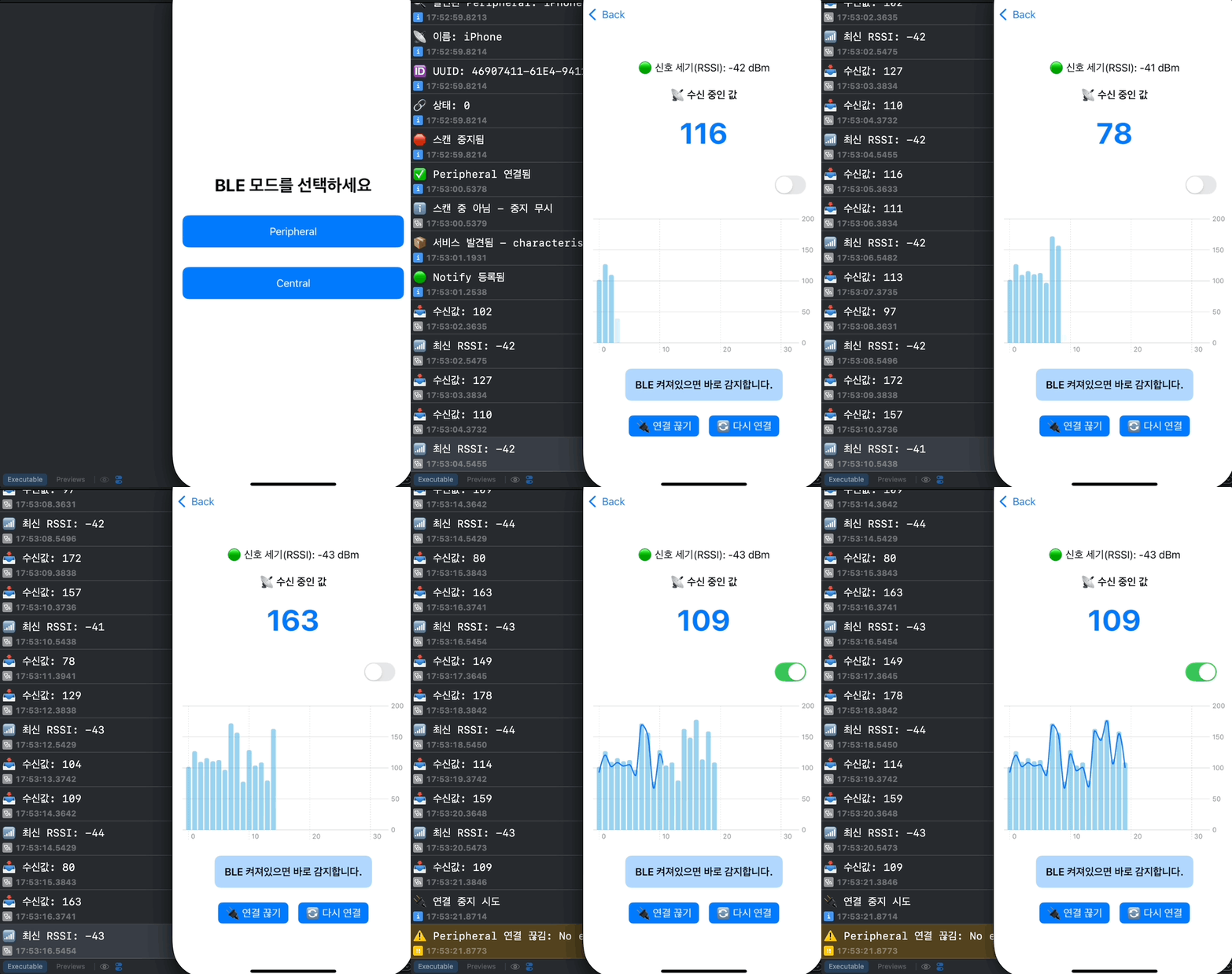
실제 데이터가 BLE로 전송되어서, 값을 읽고 처리하는 과정이다.
func peripheral(_ peripheral: CBPeripheral, didReadRSSI RSSI: NSNumber, error: Error?) { }RSSI는 수신 신호 세기를 나타낸다.
RSSI를 읽었을 때 호출된다.
연결된 Peripheral의 readRSSI()를 호출하면 결과를 콜백으로 받게 된다.
func centralManager(_ central: CBCentralManager, didDisconnectPeripheral peripheral: CBPeripheral, error: Error?) { }Peripheral와의 연결이 끊어졌을 때 호출한다.
연결 끊기면 타이머 해제나 프로퍼티를 정리를 수행했다.
결과
Reference
블루투스
근거리 무선통신 기술. 줄여서 BT 또는 BLE , 블투라고도 부른다. 과거 피처폰 시절에는 PAN(
namu.wiki
Swift Charts: Animate Marks
Lines and Bars!
levelup.gitconnected.com
'💻' 카테고리의 다른 글
| UITextView에서 한글 스타일 적용 (1) | 2025.10.13 |
|---|---|
| async let vs TaskGroup vs 연속 await (2) | 2025.08.28 |
| SwiftUI ) FCM 푸시 알림으로 특정 화면 이동 처리하기 (4) | 2025.07.05 |
| SwiftUI) Push Notification (0) | 2025.06.20 |
| API 동시 호출 시에도 안전하게 토큰 재발급하기 (0) | 2025.05.07 |


