
| 일 | 월 | 화 | 수 | 목 | 금 | 토 |
|---|---|---|---|---|---|---|
| 1 | 2 | 3 | ||||
| 4 | 5 | 6 | 7 | 8 | 9 | 10 |
| 11 | 12 | 13 | 14 | 15 | 16 | 17 |
| 18 | 19 | 20 | 21 | 22 | 23 | 24 |
| 25 | 26 | 27 | 28 | 29 | 30 | 31 |
- 캐러셀
- swift 모듈화
- fetchdescriptor
- 코드스쿼드
- swiftdata
- 팀 개발을 위한 git
- webp
- Firestore
- 함께자라기
- TestFlight
- NSTextStorageDelegate
- png
- contentalignmentpoint
- xcode 공백 표시
- github 시작하기
- 테스트 타겟
- Cocoa Pod
- xcode 엔터 표시
- SwiftUI
- .pbxproj
- JPEG
- Tuist
- heic
- NSTextStorage
- nidthirdpartylogin
- spm 에러
- 무한스크롤
- 클린 아키텍처
- 타뷸레이션
- JPG
- Today
- Total
Sure, Why not?
SwiftUI에서 무한 Carousel View 만들기 본문

SwiftUI에서 기본 TabView를 이용하여 캐러셀을 만들다가
- 무한 스크롤처럼 보여야 하고
- 인디케이터 색상을 커스텀 해야 하는
요구사항을 바탕으로 캐러셀 뷰를 구현해야 했다.
나는 오직 SwiftUI로만 구현하길 원했고,
GeometryReader로 구현하는 방법도 대강 확인은 했었지만
캐러셀 뷰를 위해 계속 레이아웃 변화를 감지한다는 것이
나에게는 성능 부담으로 느껴져서
최대한 로직으로만 처리하는 방식을 모색했다.
기존 TabView만으로는 부자연스러웠고,
기본 인디케이터는 복제 데이터까지 세어버리는 문제를 경험했다.
그래서 구현하면서 여러 문제를 겪은 내용들을 정리하고자 한다.
스크롤이 매끄럽지 않은 문제
TabView는 아이템 수가 적을 때, 빠르게 휙휙 스크롤하면 부자연스러웠다.
배열 앞뒤로 복제 데이터를 충분히 추가해서 스크롤 착각하도록 유도했다.
private var displayColors: [Color] {
    [last] + colors + colors + colors + [first]
}
무한 스크롤
각 처음이나 마지막 페이지에 닿으면
진짜 배열의 인덱스로 점프하도록 하였다.
0.3초 딜레이 줘야 끝에서 끊기지 않고 자연스러운 느낌을 주었다.
private func handleInfiniteScroll(_ newValue: Int) {
        if newValue == displayColors.count - 1 {
            Task {
                try? await Task.sleep(for: .seconds(0.3))
                currentPage = 1
            }
        } else if newValue == 0 {
            Task {
                try? await Task.sleep(for: .seconds(0.3))
                currentPage = displayColors.count - 2
            }
        }
    }
기본 인디케이터 문제
TabView의 기본 인디케이터는 복제 데이터까지 세어버렸다.
그래서 커스텀 인디게이터가 필요했다. 또한 난 색상도 커스텀해야 한다.
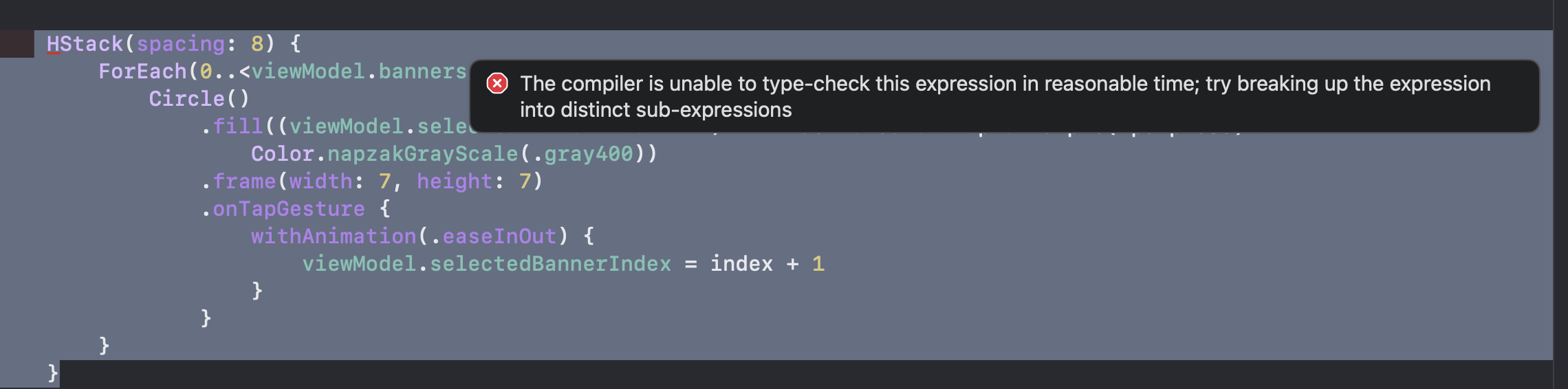
컴파일러가 더 작은 단위로 나누라고 에러를 던져줘서
extension CarouselView {
    private var indicatorView: some View {
        HStack(spacing: 8) {
            ForEach(0..<colors.count, id: \.self) { index in
                indicatorCircle(for: index)
            }
        }
    }

    private func indicatorCircle(for index: Int) -> some View {
        let isCurrentPage = index == (currentPage - 1) % colors.count
        let fillColor = isCurrentPage ? Color.yellow : Color.gray.opacity(0.4)

        return Circle()
            .fill(fillColor)
            .frame(width: 8, height: 8)
            .onTapGesture {
                withAnimation(.easeInOut) {
                    currentPage = index + 1
                }
            }
    }
}
다음과 같이 작은단위로 인디케이터를 만듦
드래그 중 자동 넘김 방지
유저가 직접 드래그하는 동안 타이머가 멈춰야하기 때문에
드래그 감지를 통해 조정하고자 했다.
기본적으로 TabView에는 이미 제스처가 있다.
하지만 내가 따로 제스처 감지하고 싶을 땐
두 개의 제스처가 공존해야 하기 때문에
simultaneousGesture 를 사용해서
해결하였다.
TabView(selection: $currentPage) {
                ForEach(0..<displayColors.count, id: \.self) { index in
                    displayColors[index]
                        .frame(height: 200)
                        .cornerRadius(12)
                        .padding()
                        .tag(index)
                        .simultaneousGesture(
                            DragGesture()
                                .updating($isDragging) { _, state, _ in
                                    state = true
                                    timerPaused = true
                                }
                                .onEnded { _ in
                                    timerPaused = false
                                }
                        )
                }
            }
그런데 다른 제스처가 가로채서 그런지
인디케이터가 터치가 되질 않았다.
상위뷰에서 호출되는 부분에
contentShape(Rectangle())로 터치 영역을 명시하니깐 해결됨
indicatorView
                .padding(.bottom, 16)
                .contentShape(Rectangle())
전체코드
import SwiftUI

struct CarouselView: View {
    @Binding var currentPage: Int
    private let colors: [Color] = [.red, .green, .blue]

    @State private var timerPaused = false
    @GestureState private var isDragging = false
    private let timer = Timer.publish(every: 5, on: .main, in: .common).autoconnect()

    private var displayColors: [Color] {
        guard let first = colors.first, let last = colors.last else { return [] }

        if colors.count == 1 {
            return [last] + colors + [first]
        } else {
            return [last] + colors + colors + colors + [first]
        }
    }

    var body: some View {
        ZStack(alignment: .bottom) {
            TabView(selection: $currentPage) {
                ForEach(0..<displayColors.count, id: \.self) { index in
                    displayColors[index]
                        .frame(height: 216)
                        .cornerRadius(12)
                        .padding()
                        .tag(index)
                        .simultaneousGesture(
                            DragGesture()
                                .updating($isDragging) { _, state, _ in
                                    state = true
                                    timerPaused = true
                                }
                                .onEnded { _ in
                                    timerPaused = false
                                }
                        )
                }
            }
            .tabViewStyle(PageTabViewStyle(indexDisplayMode: .never))
            .frame(height: 216)
            .onChange(of: currentPage) { newValue in
                handleInfiniteScroll(newValue)
            }

            indicatorView
                .padding(.bottom, 16)
                .contentShape(Rectangle())
        }
        .onAppear {
            if colors.count > 1 && currentPage == 0 {
                currentPage = 1
            }
        }
        .onReceive(timer) { _ in
            guard !timerPaused && !colors.isEmpty && !isDragging else { return }
            withAnimation(.easeInOut(duration: 0.3)) {
                if currentPage == displayColors.count - 1 {
                    currentPage = 1
                } else {
                    currentPage += 1
                }
            }
        }
    }
}

extension CarouselView {
    private var indicatorView: some View {
        HStack(spacing: 8) {
            ForEach(0..<colors.count, id: \.self) { index in
                indicatorCircle(for: index)
            }
        }
    }

    private func indicatorCircle(for index: Int) -> some View {
        let isCurrentPage = index == (currentPage - 1) % colors.count
        let fillColor = isCurrentPage ? Color.yellow : Color.gray.opacity(0.4)

        return Circle()
            .fill(fillColor)
            .frame(width: 8, height: 8)            .onTapGesture {
                withAnimation(.easeInOut) {
                    currentPage = index + 1
                }
            }

    }
}

extension CarouselView {
    private func handleInfiniteScroll(_ newValue: Int) {
        if newValue == displayColors.count - 1 {
            Task {
                try? await Task.sleep(for: .seconds(0.3))
                currentPage = 1
            }
        } else if newValue == 0 {
            Task {
                try? await Task.sleep(for: .seconds(0.3))
                currentPage = displayColors.count - 2
            }
        }
    }
}

#Preview {
    struct PreviewContainer: View {
        @State var currentPage: Int = 1

        var body: some View {
            CarouselView(currentPage: $currentPage)
        }
    }

    return PreviewContainer()
}
캐러셀 뷰를 재사용할 수 있도록 서브 컴포넌트로 분리해서 구현하였고,
MVVM 구조로 구현한다면 상위 뷰의 뷰모델로부터 페이지와 배너에 들어갈 배열데이터만 받으면 된다.
단순히 보여지는 것이 아니라, 배너를 터치하여 동작이 이뤄지도록 할려면 클로저 타입 프로퍼티를 통해 동작을 전달하면 된다.
결과

일정때문에 이정도까지만 하고
더 나은 구조가 있을 것 같은데, 개선하기 위해 앞으로 고민해봐야 할 것 같다
'iOS > 💻' 카테고리의 다른 글
| API 동시 호출 시에도 안전하게 토큰 재발급하기 (0) | 2025.05.07 |
|---|---|
| 통합 로깅 시스템 os Logger (1) | 2025.04.30 |
| PNG SVG JPEG HEIC WebP (1) | 2025.04.26 |
| .pbxproj 충돌 (0) | 2025.04.15 |
| 특수문자 체크 (1) | 2025.04.03 |


